A while back I had an idea for a project that might benefit from a drawing tablet. I'll brag on this later on my blog when I've polished and played a bunch more with it, but exploring how to interact with it got me sucked into the world of HID (human-interface-devices).
As I was struggling through reading the byte formats with the help of some AI assisted coding tools, I happened to glance over at caniuse and saw that Chrome actually supports HID (WebHID) as of 2021!
Yes - we can read HID devices natively in the browser! Little did I know at the time, that drawing tablets are maybe the absolute WORST place to start learning this stuff.
Before I go there, lets talk the easy stuff - just getting permissions!
Device Permissions #
First, we'll request device access:
const devices = await navigator.hid.requestDevice({
    filters: filters || []
});
Obviously, given the await keyword, this is an async call. But, more importantly, you can provide an
optional filters argument. We can filter by things like vendor or product IDs. These will
always come with the device handshake.
More importantly too, we can filter by usagePage. Basically, this is an identifier for what TYPE
of device we're connecting to. So for example if we wanted to connect only to "digitizers" (what a drawing tablet is),
we could filter by usagePage: 0x0D.
Filtering or not filtering really depends on your use-case. If you don't really know what you want, you'll get a long list of various devices you can connect to, and it can be confusing. On my Macbook Pro, for example, I can see a number of HID devices without even connecting anything! This is because I can see the trackpad, keyboard, and other built-in devices.
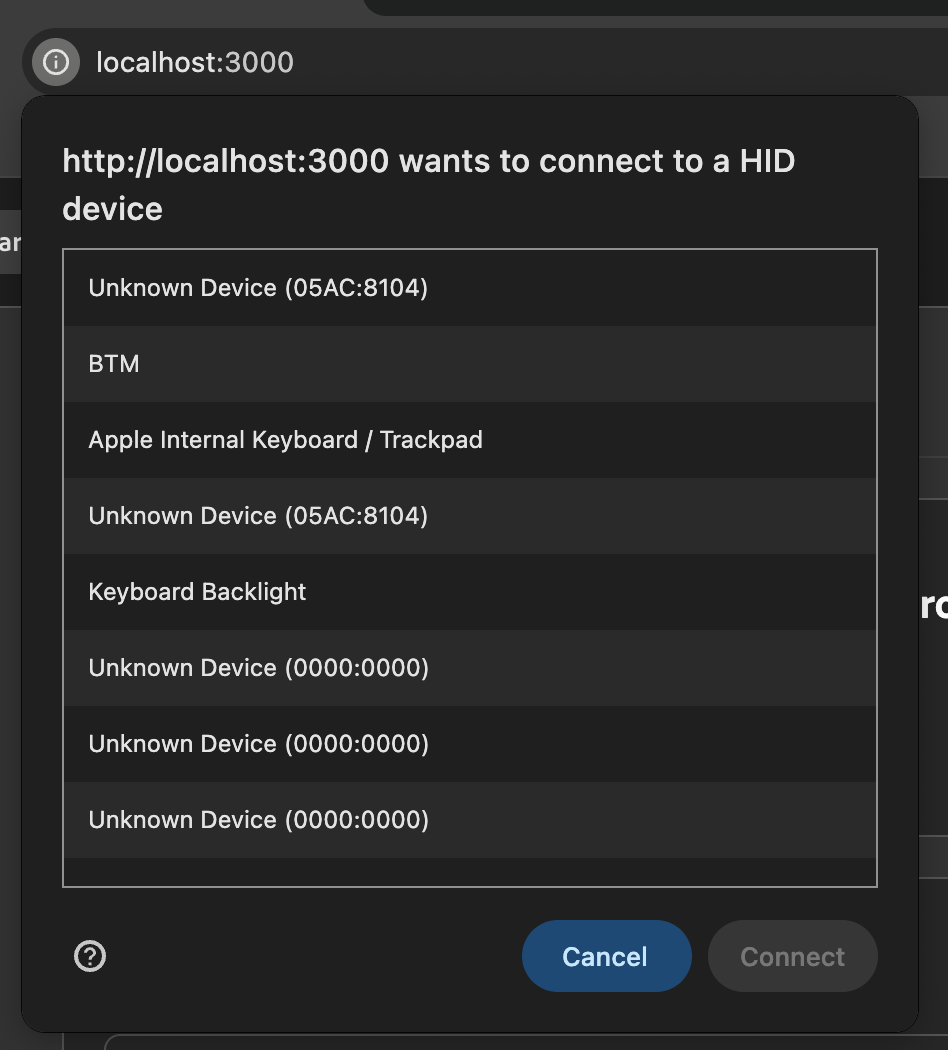
But if you already know what device you want to connect to, because you've explored it before, and know the the vendor, device, ID, or even the TYPE of device, then it can be much easier to filter and get exactly what you want.
The requestDevice call really only launches the picker, however. This call provides a way to approve device connection. It puts any device you approve
in a bucket of devices that you can then connect to.
If you've approved a device in a past browser session, requestDevice isn't needed. You can simply auto-connect because permission has already been granted.
Either way, whether you skip requestDevice or not, you'll next want to get a list of the devices you have permissions for:
const myDevices = await navigator.hid.getDevices();How these are called and the user flow is really up to you. In my project, I auto-connect first. If the device I want is found, then I open it - the user never sees the dialog to approve anything.
One UX hole in this flow is if a device you've previously connected to exists, but you actually want another. In my project, this likely won't happen based on what I expect users to do.
Point being, though, you'll have to plan how to use these calls for your specific web app.
Opening the Device and Getting Data #
From here, you can simply open the device (or devices) you want with device.open().
Easy, right?
Well, there's a tiny bit more to it, and that's actually receiving data.
If you don't want to miss a single event, add this next event listener before opening, but honestly, you'll likely not be impacted by missing a few events during this short timeframe.
device.addEventListener('inputreport', (event: HIDInputReportEvent) => {
	...
});
Other than listening for errors, this is the only thing you can listen to on the device object itself.
I will mention that you can listen for a user physically plugging in or unplugging devices through
navigator.hid.addEventListener('(dis)connect', (event) => {
    console.log('Device connected:', event.device);
});
For the HIDInputReportEvent, there are only 3 properties we need to care about.
The event returns the device that the event came from. Of course, this can be useful if you're listening to multiple
open devices and just want to use a single callback function.
The next thing you can get from an event is the reportId. Basically, a single device
can operate in multiple "modes". For example a drawing tablet MIGHT operate as a single
device when using the stylus vs using some of the physical buttons they have on the side.
For this, we can use the reportID to help us figure out which HID device
One thing that's nice about WebHID, is that the reportID is given to you as a number. For other
runtimes like Python or Node.js, you'll have to parse this out of the data yourself to know.
For reading the actual data, a Uint8Array is created from event.data.
device.addEventListener('inputreport', (event: HIDInputReportEvent) => {
    const dv = event.data;
    const bytes = new Uint8Array(dv.buffer, dv.byteOffset, dv.byteLength);
});
Apparently the byte offset can be important because the data can be part of a larger data buffer, and we need to know exactly where the data starts to populate our array.
But from there, we have an array of byte values to work with (typically 10-12 bytes depending on the device). Different actions on the drawing tablet will change these values in different ways and its up to you to figure it out!
Interpreting the Data #
Interpreting is where it gets a little tricky! So far, I've tried two drawing tablets - but beyond that I'm just spending more and more money to accumulate drawing tablets to make assumptions on how they work and if they adopt the same byte formats for similar actions.
Until then, here's a little snapshot of what I've learned for a Huion Inspiroy 2 Medium and a XP Deco 640:
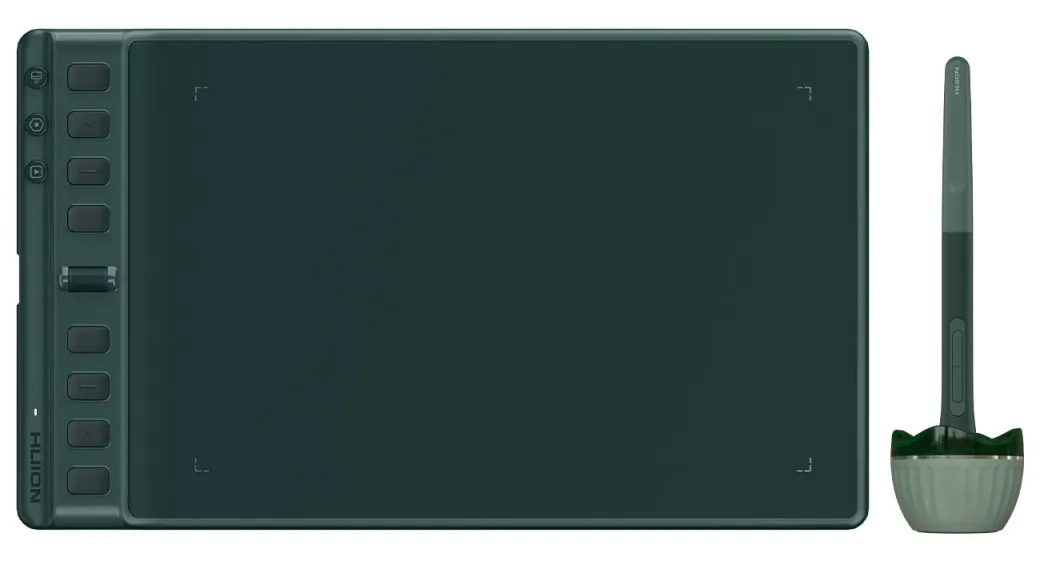 the Huion Inspiroy 2 Medium
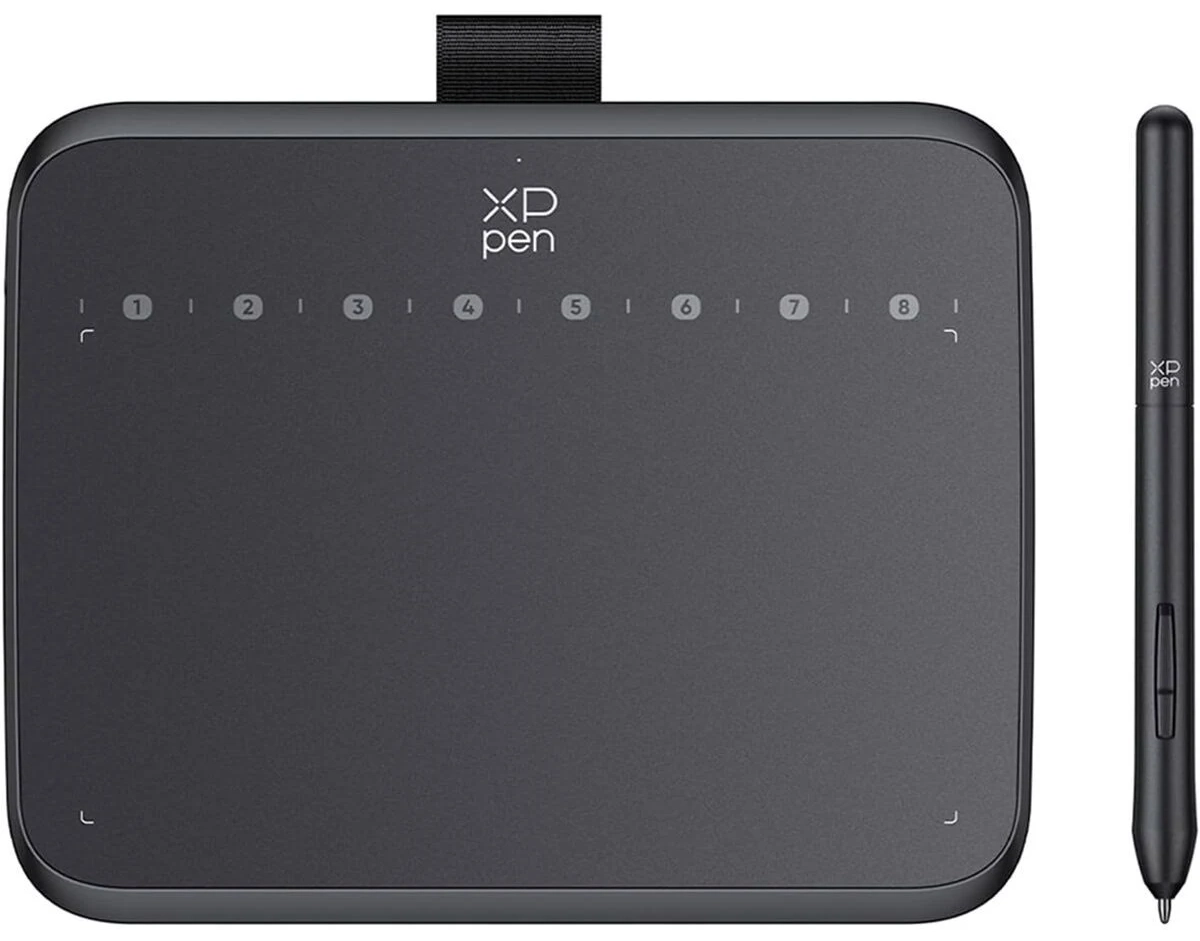 the XP Deco 640
- X coordinates are at byte indices 1 and 2 (the 2nd and 3rd bytes) using "little-endian" formatting
- Y coordinates are at byte indices 3 and 4 (the 4th and 5th bytes) using "little-endian" formatting
- Pen pressure is at byte indices 5 and 6 (the 6th and 7th bytes) using "little-endian" formatting
- Tilt X and Y use byte indices 7 and 8 (the 8th and 9th bytes) respectively as single bytes.
When I say "little endian", this means that you use 2 bytes at the same time to come up with one number. The first byte is the "low byte", and the second "high".
The x coordinate would therefore be:
const x = bytes[1] | (bytes[2] << 8);We're taking the third byte, shifting it 8 bits to the left, and then doing a bitwise OR to combine the results.
Yes. I asked AI how to do this for me.
In easier to understand terms, it would be:
const x = bytes[1] + (bytes[2] * 256);For tilt, I found:
-
0 = center (0°)
-
30 = halfway positive tilt
-
60 = max positive tilt
-
196 = max negative tilt (wraps from 255 side)
-
225 = halfway negative tilt
-
255 = slight negative tilt
So it kind of reads normally for positive tilt, but negative starts at 255 and counts down.
But again, is this all HID digitizers? I don't know. There's not too much reason to go into details here when I just found it works this way on my two devices!
This, however, is why I created a project I'm calling "Blankslate". To create a workflow to have a user send this events in a consistent way, and have a user experience "wizard" of sorts that learns how to map this raw byte data into a consistent stream of tablet events.
"Blankslate" generates a JSON configuration file for your tablet, including what device interface IDs to listen to, what report IDs to expect, and how to parse the bytes.
If you want to find out more about this experimental project, check out Blankslate!
Why WebHID and Drawing Tablets can be a Bad Combo #
To close this post out, I wanted to go back to what I opened with.
Little did I know at the time, that drawing tablets are maybe the absolute WORST place to start learning this stuff.
And this is in addition to the fact that WebHID is Chrome/Edge only.
The reasons are a mix of sandboxing and OS restrictions.
First, at least on MacOS, a standard digitizer is hard wired on the OS level to control your mouse cursor. There is absolutely no way to turn this off at the OS level from what I can see.
In Python or Node.js however, you can get "exclusive" access to the device. Basically, when you open it, events are no longer sent to the OS and you can just interpret them.
With WebHID, there's no such luck. I guess it's probably some kind of security issue to allow a website to take over your devices? I'm not sure.
This means, in a browser, you're at the mercy of your device driver settings to help you out. With the XP Pen Deco 640 software, I didn't see any way to stop this from happening. It's a shame because I really want to use my drawing tablet as an alternate input source, and having it control the mouse is distracting to say the least.
I did find a quirk though! If I start the driver software, this software now gets exclusive device access. Your OS stops listening while the driver is now managing your mouse cursor. If you exit the application, the OS doesn't actually take over again until you unplug and re-plug the device back in (or resart your computer).
You've just cheated your way into getting exclusive device access!
The other reality is if your tablet comes with buttons on the side. For my XP Deco 640, these buttons actually fall under the digitizer interface IF you don't have the driver software running.
So if the driver software isn't running, you'll get button events as keyboard events by default, but you can ALSO tap into the raw HID events and get them as bytes as well.
When the driver software IS running however, these get changed into keyboard events only as the driver software takes over.
On the Huion Inspiroy 2 Medium, I actually haven't downloaded the driver software yet, but without the driver the buttons are actually NOT part of the "digitizer" HID interface at all, but on a separate Keyboard HID style interface.
Unfortunately, Keyboard HID events are not available through WebHID - they are actually banned under a security blocklist! It sounds like allowing a web app to listen to keyboard events are enough of a potential security (spying) threat to just ban that entire category of device (usage page).
Even in Python or Node.js on MacOS you need to run as root (sudo) to get Keyboard HID events.
Looking forward to trying more HID devices #
Apart from Blankslate mentioned above as a tablet configuration generation tool, I'm working on another project that uses all of this to use a drawing tablet as a MIDI controller of sorts.
Given all the limitations with drawing tablets and WebHID, the browser aspect will likely be more of a novelty and the heavy lifting in Node.js or Python.
But overall, WebHID seems like it could be pretty cool for connecting all sorts of other devices that your OS doesn't have strong opinions about. I'm excited to explore Nintendo Switch controllers over bluetooth/WebHID next!